If you're having trouble with your Ring Doorbell—whether it's connectivity issues, moving to a new home, or preparing to sell it—a reset might be just what you need. Resetting your Ring Doorbell will restore it to its factory settings and allow you to start fresh. This guide will guide you on how to reset a Ring Doorbell, including how to reconnect it to Wi-Fi and reprogram the device.
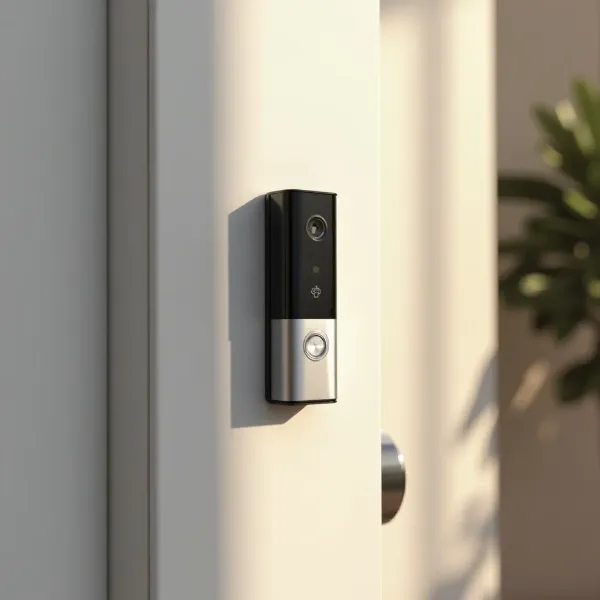
Why and When to Reset Your Ring Doorbell
There are a few reasons why you might need to reset your Ring Doorbell. Whether you're troubleshooting, moving, or reconfiguring the device, here’s when you might consider resetting it.
Reasons to Reset Your Ring Doorbell
- Troubleshooting Issues: If your Ring Doorbell isn’t working as it should—whether it’s unresponsive or having trouble connecting to Wi-Fi—a reset is often the first step in fixing the problem.
- Moving to a New Home: If you're relocating, you’ll need to reset your Ring Doorbell to set it up with your new network and home.
- Selling or Gifting the Device: Before you pass your Ring Doorbell on to someone else, a reset ensures that all of your personal information and settings are removed.
- Wi-Fi or Network Changes: If you’ve upgraded your router or switched to a new Wi-Fi network, resetting the device can help you reconnect it with ease.
What Happens When You Reset Your Ring Doorbell?
When you reset your Ring Doorbell, it goes back to its factory settings. This means all your custom settings—like Wi-Fi information, motion alerts, and linked accounts—will be erased. Essentially, it’s like starting with a brand-new device, which can be helpful when troubleshooting or setting it up in a new home.
Before You Begin: Power and Tools You’ll Need
Before you reset your Ring Doorbell, make sure everything is in order. Here’s what you’ll need to get started:
Ensure Your Ring Doorbell Has Power
- Battery-Powered Models: Check that your Ring Doorbell's battery is fully charged before attempting a reset. If the battery is low, charge it first to avoid interruptions.
- Wired Models: Make sure your doorbell is properly wired and powered. If you're unsure, confirm that the power supply is active.
Gather Necessary Tools
Depending on your Ring Doorbell model, you may need a few tools to access the reset button. You might need a T15 Torx bit or a small screwdriver to remove the faceplate. Make sure you have everything ready to go.
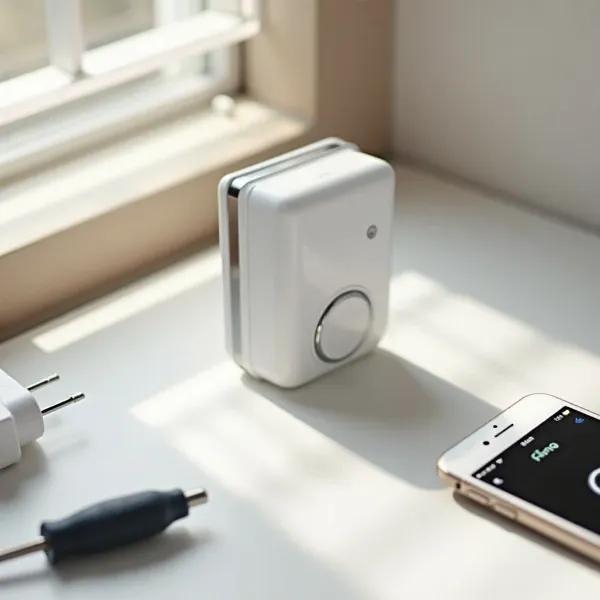
How to Reset Your Ring Doorbell: A Step-by-Step Guide
Follow these steps to reset your Ring Doorbell. Whether it’s a battery-powered or wired model, this guide will walk you through the process.
Locate the Reset Button
Where you find the reset button depends on your Ring Doorbell model:
- Internal Battery Models: The reset button is usually on the back of the device.
- Removable Battery Models: The reset button can typically be found under the faceplate.
- Wired Models: In wired versions, the reset button is often under the faceplate, usually on the right side.
Press and Hold the Reset Button
- Locate the reset button based on your device model.
- Press and hold the button for about 20 seconds.
- Watch for a blue light to flash, followed by a spinning white light. This indicates that the reset process is in progress.
Release the Button and Wait for Setup Mode
Once the white light starts spinning (or you hear a voice prompt), release the reset button. This means your Ring Doorbell is now in setup mode, and you’re ready to move on to reprogramming.
How to Factory Reset Your Ring Doorbell
If you need to completely erase all data and settings from your Ring Doorbell, follow these steps for a full factory reset.
Remove the Device from Your Ring Account
Before resetting the device, it’s a good idea to remove it from your Ring account. Here’s how:
- Open the Ring app on your smartphone.
- Go to Device Settings.
- Select General Settings.
- Tap on Remove Device to disconnect it from your account.
This step ensures that your Ring Doorbell is fully disconnected from your account before performing the reset.
Reprogram Your Ring Doorbell
After the factory reset, you’ll need to set the device up again. Here’s how to do it:
- Open the Ring app on your phone.
- Select Set up a device and choose Ring Doorbell from the list of devices.
- Scan the QR code located on the back or inside the packaging of your Ring Doorbell.
- Follow the on-screen prompts to reconnect the doorbell to your Wi-Fi and Ring account.
Additional Tips: Troubleshooting and Reprogramming Your Ring Doorbell
Sometimes, things don’t go as smoothly as planned during the reset process. If you’re running into problems, here are a few tips to help you along the way.
Troubleshooting Common Issues
- Weak Wi-Fi Signal: If your Ring Doorbell is struggling to connect, ensure that your Wi-Fi signal is strong. Try moving your router closer to the device or using a Wi-Fi extender.
- Low Battery: Make sure the device is charged. Low battery levels can interfere with the reset process.
- Device Not Responding: If the reset button isn’t working, try holding it down for at least 30 seconds. Also, check that your device is powered on before attempting again.
Reprogramming Your Ring Doorbell
Once the reset is complete, follow the on-screen instructions in the Ring app to reprogram the device. During the reprogramming process, you’ll need to:
- Select the correct Wi-Fi network.
- Set up motion zones to customize where the doorbell detects movement.
- Adjust alerts based on your preferences.
These steps will help ensure your Ring Doorbell is ready for use in your new home or Wi-Fi network.
For more information on installing your Ring Doorbell, be sure to check out our guide on how to install Ring Doorbell.
Conclusion: Reset Your Ring Doorbell with Ease
Resetting your Ring Doorbell doesn’t have to be complicated. Whether you're troubleshooting, moving, or preparing to sell the device, this simple guide walks you through everything you need to know. From removing the device from your account to reconnecting it to your Wi-Fi, you'll have everything set up in no time.